Know Password Using Inspect Elements


Password Vulnerability in All Browser:-


Step 1 - Open any browser and open any website like facebook.com

Step 2 - Give your credentials (Username and Password)

Step 3 - Now right click on password pane where you input your password than choose last option > Inspect Element.

Step 4 - Now you got the Element console and automatically one line is selected, where you can see
<input type="password" class="inputtext" and so on.

Step 5 - You just simply click on "password" and rename or replace it with word "text" (without quotes) and press Enter key.

Step 6 - Now you got the password , keep enjoying...

Do not comment Old one and other shit, You know it other may not know it. Stay calm, stay Hungry, Keep Learning.


Read more

WINDOWS RUN Commands !!!


Helloo!! Guyzzz HaXoR is here Today i,m going to show you about 115 run commands which will be very useful for u!! Hope you like it.


WINDOWS RUN Commands !!!

1. Accessibility Controls - access.cpl
2. Accessibility Wizard - accwiz
3. Add Hardware Wizard - hdwwiz.cpl
4. Add/Remove Programs - appwiz.cpl
5. Administrative Tools - control admintools
6. Automatic Updates - wuaucpl.cpl
7. Bluetooth Transfer Wizard - fsquirt
8. Calculator - calc
9. Certificate Manager - certmgr.msc
10. Character Map - charmap
11. Check Disk Utility - chkdsk
12. Clipboard Viewer - clipbrd
13. Command Prompt - cmd
14. Component Services - dcomcnfg
15. Computer Management - compmgmt.msc
16. Control Panel - control
17. Date and Time Properties - timedate.cpl
18. DDE Shares - ddeshare
19. Device Manager - devmgmt.msc
20. Direct X Troubleshooter - dxdiag
21. Disk Cleanup Utility - cleanmgr
22. Disk Defragment - dfrg.msc
23. Disk Management - diskmgmt.msc
24. Disk Partition Manager - diskpart
25. Display Properties - control desktop


26. Display Properties - desk.cpl
27. Dr. Watson System Troubleshooting Utility -
drwtsn32
28. Driver Verifier Utility - verifier
29. Event Viewer - eventvwr.msc
30. Files and Settings Transfer Tool - migwiz
31. File Signature Verification Tool - sigverif
32. Findfast - findfast.cpl
33. Firefox - firefox
34. Folders Properties - control folders
35. Fonts - control fonts
36. Fonts Folder - fonts
37. Free Cell Card Game - freecell
38. Game Controllers - joy.cpl
39. Group Policy Editor (for xp professional) -
gpedit.msc
40. Hearts Card Game - mshearts
41. Help and Support - helpctr
42. HyperTerminal - hypertrm
43. Iexpress Wizard - iexpress
44. Indexing Service - ciadv.msc
45. Internet Connection Wizard - icwconn1
46. Internet Explorer - iexplore
47. Internet Properties - inetcpl.cpl
48. Keyboard Properties - control keyboard
49. Local Security Settings - secpol.msc
50. Local Users and Groups - lusrmgr.msc
51. Logs You Out Of Windows - logoff
52. Malicious Software Removal Tool - mrt
53. Microsoft Chat - winchat
54. Microsoft Movie Maker - moviemk
55. Microsoft Paint - mspaint
56. Microsoft Syncronization Tool - mobsync
57. Minesweeper Game - winmine
58. Mouse Properties - control mouse
59. Mouse Properties - main.cpl
60. Netmeeting - conf
61. Network Connections - control netconnections
62. Network Connections - ncpa.cpl
63. Network Setup Wizard - netsetup.cpl
64. Notepad - notepad
65. Object Packager - packager
66. ODBC Data Source Administrator -
odbccp32.cpl
67. On Screen Keyboard - osk
68. Outlook Express - msimn
69. Paint - pbrush
70. Password Properties - password.cpl
71. Performance Monitor - perfmon.msc
72. Performance Monitor - perfmon
73. Phone and Modem Options - telephon.cpl
74. Phone Dialer - dialer
75. Pinball Game - pinball
76. Power Configuration - powercfg.cpl
77. Printers and Faxes - control printers
78. Printers Folder - printers
79. Regional Settings - intl.cpl
80. Registry Editor - regedit
81. Registry Editor - regedit32
82. Remote Access Phonebook - rasphone
83. Remote Desktop - mstsc
84. Removable Storage - ntmsmgr.msc
85. Removable Storage Operator Requests -
ntmsoprq.msc
86. Resultant Set of Policy (for xp professional) -
rsop.msc
87. Scanners and Cameras - sticpl.cpl
88. Scheduled Tasks - control schedtasks
89. Security Center - wscui.cpl
90. Services - services.msc
91. Shared Folders - fsmgmt.msc
92. Shuts Down Windows - shutdown
93. Sounds and Audio - mmsys.cpl
94. Spider Solitare Card Game - spider
95. SQL Client Configuration - cliconfg
96. System Configuration Editor - sysedit
97. System Configuration Utility - msconfig
98. System Information - msinfo32
99. System Properties - sysdm.cpl
100. Task Manager - taskmgr
101. TCP Tester - tcptest
102. Telnet Client - telnet
103. User Account Management - nusrmgr.cpl
104. Utility Manager - utilman
105. Windows Address Book - wab
106. Windows Address Book Import Utility - wabmig
107. Windows Explorer - explorer
108. Windows Firewall - firewall.cpl
109. Windows Magnifier - magnify
110. Windows Management Infrastructure -
wmimgmt.msc
111. Windows Media Player - wmplayer
112. Windows Messenger - msmsgs
113. Windows System Security Tool - syskey
114. Windows Update Launches - wupdmgr
115. Windows Version - winver
Read more

Amazing computer Tricks


Amazing computer Tricks 


TRICK #1

Nobody can create a FOLDER
anywhere on the computer which can be named as â CON.

This is something pretty cool and unbelievable. ..
At Microsoft the whole Team, couldn't answer why this
happened!
TRY IT NOW ,IT WILL NOT CREATE CON FOLDER

TRICK #2


For those of you using Windows, do the following:

1.) Open an empty notepad file
2.) Type â€Å“Bush hid the facts (without the quotes)
3.) Save it as whatever you want.
4.) Close it, and re-open it.

See What happened.....................


TRICK #3

Microsoft crazy facts

This is something pretty cool and neat and
unbelievable. .. At Microsoft the whole Team,
including Bill Gates, couldn't answer why this
happened!

It was discovered by a Brazilian. Try it out
yourself¦

Open Microsoft Word and type

=rand (200, 99)

And then press ENTER

Enjoy

NOW some interesting.....Tricks by which you can Improve the Performance.....of OS....

Make your folders invisible..

1)Right Click on the desktop.Make a new folder
2)Now rename the folder with a space(U have to hold ALT key and type 0160).
3)Now u have a folder with out a name.
4)Right click on the folder > properties > customize. Click on change icon.
5)Scroll a bit, u should find some empty spaces, Click on any one of them.
click ok

Shutdown Trick !


Imidiate rapid shut down window
while shutting down window. open task manager(Ctr+Alt+Del),
Select shut down tab. and press Ctrl key while select Turn Off from dis tab.
Count 5 4 3 2 1 Voila!!! U r window will rapidly shut down.

Speed Up Ur Shut down !!

Start Regedit.
Navigate to HKEY_LOCAL_MACHINE/SYSTEM/CurrentControlSet/Control.
Click on the Control Folder.
Select â€Å“WaitToKillServiceTimeout
Right click on it and select Modify.
Set it a value lower than 2000 (Mine is set to 200).

and !
Like previous versions of windows, it takes long time to restart or shutdown windows xp when the Exit Windows sound is enabled. to solve this problem you
must disable this useless sound. click start button then go to settings -&amp;gt; control panel -&amp;gt; Sound,Speech and Audio devices -&amp;gt; Sounds and Audio Devices -&amp;gt; Sounds, then under program events and windows menu click on Exit Windows sub-menu and highlight it.now from sounds you can select,choose œnone and then click apply and ok. now you can see some improvements when shutting down your system.


Thnx For Visiting  HaXoR
Read more

List of Facebook Contact Forms to report your Problems [30 links]


List of Facebook Contact Forms to report your 

Problems [30 links]


Many of us are unaware that we can contact Facebook for any problem.Hey !! Here is the solution with links to report your problem to Facebook.(you will be replied within a hour with proper reasons from Facebook team)

LOGIN/PASSWORD

PHP Code:

http://www.facebook.com/help/contact/?id=357439354283890

FRIENDS

PHP Code:

http://www.facebook.com/help/contact/?id=304512289600871

CHAT

PHP Code:

http://www.facebook.com/help/contact/?id=175070195930673

SEARCH

PHP Code:

http://www.facebook.com/help/contact/?id=137406866379070


EVENTS

PHP Code:

http://www.facebook.com/help/contact/?id=348719565146937

NOTES

PHP Code:

http://www.facebook.com/help/contact/?id=346933711993277

PHOTOS

PHP Code:

http://www.facebook.com/help/contact/?id=372307462785962

VIDEO

PHP Code:

http://www.facebook.com/help/contact/?id=336620663035125

GROUPS

PHP Code:

http://www.facebook.com/help/contact/?id=197060467057875

MESSAGES

PHP Code:

http://www.facebook.com/help/contact/?id=143318592452565
Read more

How to hack a website with Havij

How to hack Website using Havij ? 

                                                First of all there is nothing hard in this tutorial or damn steps to be followed - Just read it once - simply. But if you really want to learn SQL Injection then try to do it manually instead of using any tools..! -

First you have to download havij click on the link given below:
                1.Click here to download
                2.how to Install Click Here to know


 Steps to Hack Website Database using Havij :
  • Search for SQLi Vulnerable Website.
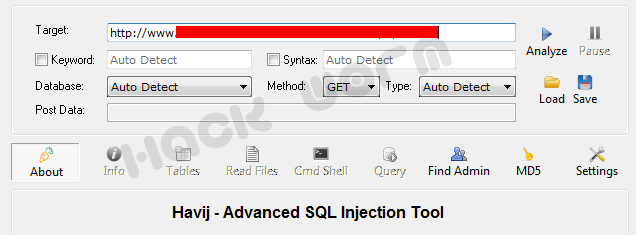
  • Enter Website URL into Target box and Analyze it

    After Analyzing you can see that, It will find Database name, Tables etc. 

    Always keep your an eye on STATUS BOX [Log] 


  • And now, We got Database name and Tables, Let's find out Columns and Data of Users, Password etc.
  • Now after getting Database name, you can see that "Tables" button is activated and we can read Tables.
  • Just click on "Tables" and you will get table like this :-


  • Here, we are Successful in finding database Table, now it's time to find Database Row and Columns, So now click on Get DBs.
  • DBs will load all Database to Program and it can be easily access-able. Now again click on Get Tables.
  • -


  • Huh !! Finally we got up 'users' table, Now select users and click on 'Get Columns' and you will see this :-


  • After Getting Columns and all.. Finally Click on 'Get Data' and you will get all login ID and Mdp_user as Shown in the Image :-

    So, here we got up Website Admin login_user ID and mdp_user. Now finally crack mdp_user Code and decode it : to get password.
     Now, it's time to Enter into Website using this Two Admin login ID and Password. To get the Admin page Click on 'Find Admin' and click on start to Analyze the admin page :-


    Got up :D, Now go to that URL of admin and Login with ID and password you got from Database :D We Hacked into website that's it Done. You  got Admin Seat and Enjoy,Play  with Website :D
     Thnx For Visiting Keep Visiting Guyzz 
    Read more

    How To send Requests on facebook when you are blocked?


    Send Facebook 

    Friend Requests 

    When You Are 

    Blocked?


    1. Go to Click Here

    Here you will find a place to add a friends through their Emails based on the different Mail Services. But, if you’re thinking of adding too many people then it would be better that you create a contact file.

    If you don’t know the easiest way to make contact file then follow these steps.

    a) Open new text document (.txt) in notepad.

    b) Add all the email addresses separated by a comma ( , ).

    c) Now save that file with the extension .vcf

    Now this is your contact file.

    2. Go to Click here


    3. Upload Contact file to Facebook. and you will be prompted to send friend request. Click “OK” and You’re done.


    If you are not blocked from sending Friend Requests but still you get warnings like ‘This Friend Request Can’t Be Sent’ then you can refer another trick which will help you in bypassing this error. ......  [TK]

    Keep Visiting
    Read more

    Kp Typing Tutor ,,Make your typing speed faster


    KP Typing Tutor : An Ultimate Software to Learn Fast Typing
    You might have seen many Free typing software that help us to tune-up and polish our Typing skills, but yet i've not found any program that is better and sufficient as KP Typing tutor. KP is the best with many features you may like, and second thing it is totally free.

    Features of KP Typing Tutor :
    • Free form typing program to memorize keyboards buttons
    • Sentence Course, Free Drills, Typing Course
    • Amazing Typing Game that will polish your Skills and score more high
    • Custom Paragraph Drills and Note Writing features
    • Guides with every Keyboard button
    • Can teach you type Blindly (Not Looking at keyboard)
    • Support many keyboard and Languages
    • Some more can't describe : Size : 3 MB and Free Software.
    Thnx For visiting

    Read more

    Matrix Notepad trick


    Notepad is the most essential text editor for PC, it is used in taking notes, writing codes, etc.It can be used for doing some fun stuffs too, let me show you tricks of notepad:


    ------>The Matrix falling trick

    Copy and paste the below code in a new notepad and then save it as matrix.bat

    @echo off
    color 02
    :tricks
    echo %random%%random%%random%%random%%random%%random%%random%%random%
    goto tricks

    Now run the matrix.bat file by double clicking it and then see the effect.


    Note u can change to file "Matrix" to anything But the format must be in .bat 
    sooo Becareful
    Read more

    How to change the administrator password without knowing the current one?


    How to change the administrator password without knowing the current one?


    1. GO TO CONTROL PANEL

    2. CLICK ON " ANDMINISTRATIVE TOOLS"

    3. NOW CLICK ON " COMPUTER MANAGEMENT "

    4. NOW GO TO SYSTEM TOOLS

    5. DOUBLE CLICK ON LACAL USERS AND GROUPS

    6. THEN FINALLY UNDER USERS U WILL SEE ALL THE USER ACCOUNTS INCLUDING ADMIN ACCOUNT.

    7. NOW RIGHT CLICK ON ADMINISTRATOR AND CLICK SET PASSWORD

    8. IT WILL NOT ASK FOR PREVIOUS PASSWORD SO U DON'T NEED TO KNOW IT.

    9. NOW ALL DONE..! !!


    Posted by HaXoR

    Don't Forget like our page on facebook to get updated
    Click here to Visit

    Here is another Password changing tip that is soo simple i want to share that to u all!!


    1.first of all u have to "Run" and type  "lusrmgr.msc"
    2. Click right and u will find something like this


    \3. double Click on user and u will see all users present in that pc .!!
    4.now right click on the account on which you want to change the password .when you click on set  password then it will permission click on proceed and u r done
    5.Congrats its done,,,Enjoy!!! Keep Visiting

    Don't Forget to like us on facebook :


    Read more

    MAKE WINDOWS GREET YOU WITH A CUSTOM VOICE MESSAGE AT STARTUP


    MAKE WINDOWS 

    GREET YOU WITH 

    A CUSTOM VOICE 

    MESSAGE AT 

    STARTUP!!!!!!!!


    Do you watch movies? Have you always loved the way how Computers in movies welcome their users by calling out their names? I bet that you too would want to know how you can achieve similar results on your PC and have a computer said welcome. Then you are at the right place, this article describes exactly how you can make your computer welcome you like this.

    With this trick, you can make your Computer welcome you in its computerized voice. You can make your Windows based computer say "Welcome to your PC, Username."

    Make Windows Greet you with a Custom Voice Message at Startup

    To use this trick, follow the instructions given below:-


    1. Click on Start. Navigate to All Programs, Accessories and Notepad.
    2. Copy and paste the exact code given below.

    Dim speaks, speech
    speaks="Welcome to your PC, Username"
    Set speech=CreateObject("sapi.spvoice")
    speech.Speak speaks


    3.  Replace Username with your own name.     

    4.  Click on File Menu, Save As, select All Types in Save as Type option, and save the file as Welcome.vbs or "*.vbs".    

    5.  Copy the saved file.     

    6.  Navigate to 
    C:\Documents and Settings\All Users\Start Menu\Programs\Startup (in Windows XP) or
    to C:\Users\ User-Name\AppData\Roaming\Microsoft\Windows\Start Menu\Programs\Startup 
    (in Windows 7 and Windows Vista)
    if C: is your System drive.    

    7.  Paste the file.


    Now when the next time you start your computer, Windows will welcome you in its own computerized voice.

    Note: For best results, it is recommended to change sound scheme to No Sounds.You can change the sound scheme to No Sounds by following the steps given below:-
    1. Go to Control Panel.
    2. Then click on Switch to Classic View.
    3. Then Click on Sounds and Audio Devices.
    4. Then Click on the Sounds Tab.
    5. Select No Sounds from the Sound Scheme option.
    6. If you wish to save your Previous Sound Scheme, you can save it by clicking Yes in the popup menu.
    7. Click on OK.


    Try it yourself to see how it works. In my personal opinion, this is an excellent trick. Whenever I start my PC in front of anybody and the PC welcomes me, the fellow is left wondering how brilliant a computer do I have.


    Read more